How to use Decinote
Choose your language and follow the steps at your own pace. Video and spoken guidance are optional.
Step 1 of 7
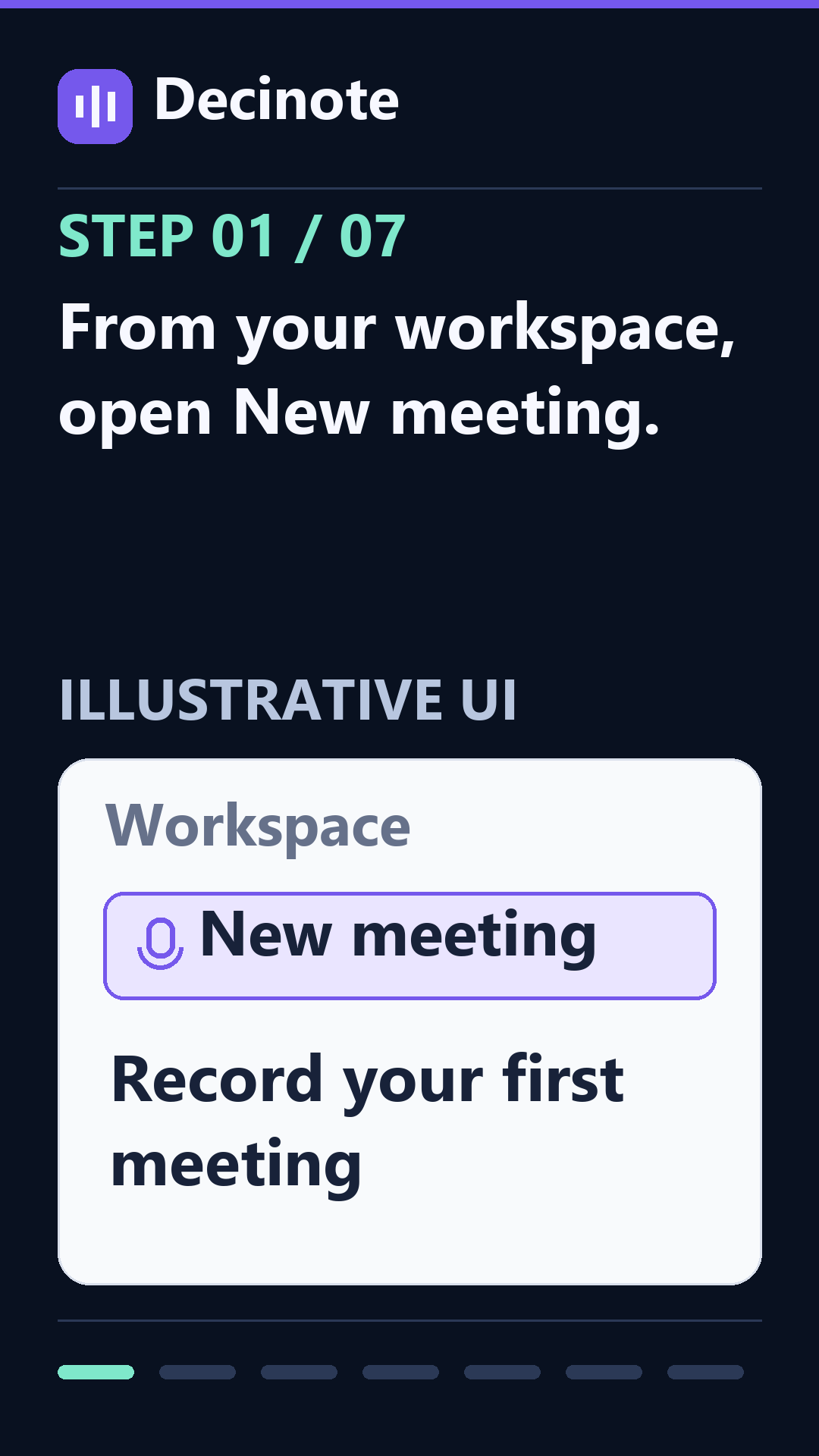
From your workspace, open New meeting.
No timer or automatic motion. Move to the next screen when you are ready.
Read all seven steps
Install on your device
Open decinote.com/install and choose your device. On iPhone or iPad, open Safari, tap Share, then Add to Home Screen. On Android or Samsung, use the Install option in Chrome’s menu. On Windows or Mac, use Chrome or Edge’s install option. Supported Safari on Mac also offers Add to Dock. If no install option appears, continue in your browser. Installing does not unlock Pro.
Sign in
Sign in with an email code or Google. Installing the app is optional.
Set up your meeting
Choose New meeting, give it a name and choose the meeting language. For an in-person meeting, choose In-person audio.
Record an online call
Choose Online meeting in supported desktop Chrome or Edge. Select the meeting tab and enable Share tab audio. Camera and screen recording require Pro.
Get consent. Then record.
Get everyone's permission, check the consent box and press Start recording. Allow microphone or camera access if requested. Keep the app open and your device awake.
Stop, save and wait
Press Stop & save and wait for saving to finish. Then open Library. Keep your internet connection on: Decinote is not a fully offline recorder.
Review your meeting
Open the saved meeting to review its recording, transcript and notes. Automatic notes have a file-size limit of 100 MiB: for example, about one hour forty-five minutes of audio-only, or about five minutes of video. These are estimates, not guaranteed recording times. Your browser and quality change file size, and your monthly plan allowance is separate. Larger recordings keep editable manual notes. Review and correct artificial intelligence results. Arabic speaker labels are not provided.
Optional captioned video
This video plays without narration. Use the illustrated guide above to set your own pace. The screens are illustrative; installation steps are at the top of this page.
Automatic notes: time examples
- Audio-only example
- About 1 hour and 45 minutes
- Video with audio example
- About 5 minutes
Examples, not guaranteed recording times. The actual limit is file size; your browser and recording quality change how many minutes fit.
File size and monthly allowance
AI processing accepts recordings up to 100 MiB each. Larger recordings remain saved with editable manual notes.
Your monthly recording allowance is separate: Free includes 30 minutes; Pro includes 10 hours. Your remaining allowance may be shorter than these examples.
Examples use 128 kb/s audio and 2.5 Mb/s video plus audio, rounded down. Decinote does not force these quality settings.